

Guide d'utilisation
Trades
View, add, and edit your trades.
The Trades page displays all your imported or manually added trades. It's the center for managing your data.
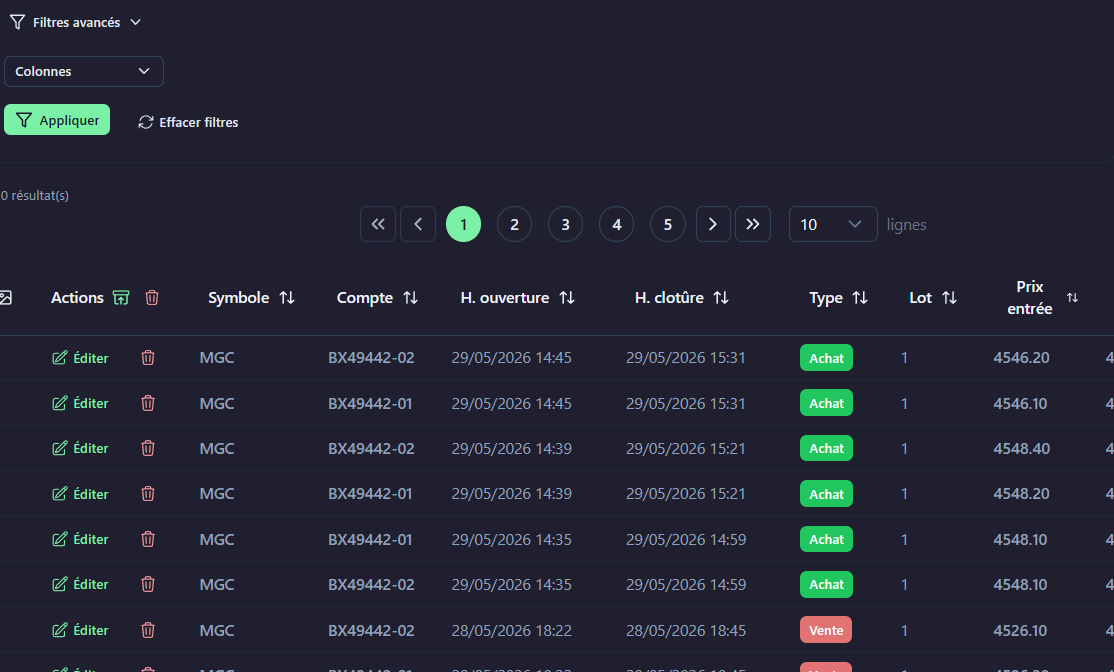
Configurable columns
You can choose which columns are displayed via the Columns menu:
| Column | Description |
|---|---|
symbol | Traded symbol |
type | Buy / Sell |
openDate | Open date and time |
closeDate | Close date and time |
lot | Position size |
openPrice | Entry price |
closePrice | Exit price |
profit | Gross P&L |
commission | Commission |
stopLoss | Stop loss |
takeProfit | Take profit |
screenshots | Screenshots |
Soft delete (disable / reactivate)
Trades are not permanently deleted — they are disabled.
- Disable: Click the trash icon → the trade disappears from calculations but remains in the database
- Reactivate: Filter inactive trades → click the restore icon
Show inactive trades with the "Show inactive" checkbox in the filters.
Bulk actions
Select multiple trades to:
- Bulk disable
- Bulk reactivate
Screenshots
Click the image icon on a trade to open the screenshot carousel.
Add or edit a trade manually
Open the form
Click "Manual entry" or the pencil icon on an existing trade.
Fill in the fields
- Symbol, type, dates, prices, lots ...
- Commission and swap (optional)
- Attach screenshots
Save
The trade is immediately visible in the trades list.
Pagination
Control the number of rows displayed: 10, 15, 20, 30, 40, or 50 per page.
Advanced filters
The same advanced filters as on the dashboard apply here. See the Dashboard page for the full list.