

File Import
MetaTrader 5
Import your trades from MetaTrader 5 via XLSX or Expert Advisor.
MetaTrader 5 (XLSX)
Export from MT5
- Open the MetaTrader 5 Windows application (standalone version)
- In the Terminal window, select the History tab
- Right-click on any order in the account history
- Select the period you want to export
- Right-click on another order and select "Report"
- Save the report in "Open XML (MS Office Excel 2007)" format (
.xlsx) to your desktop
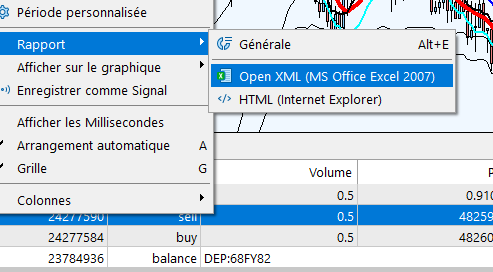
Import — Method 1 (manual upload)
First create an MT5 profile with provider "MetaTrader 5" (see Create import profile):
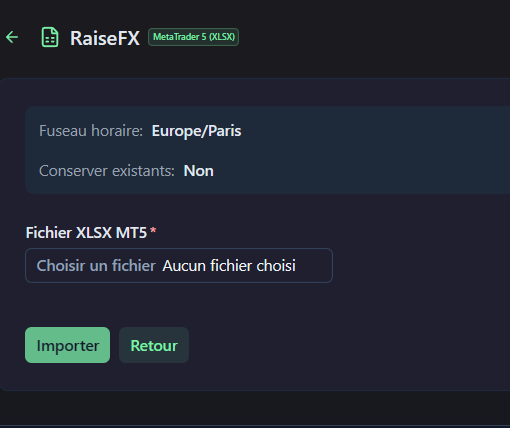
- Once your profile is created, click the Use button on the MT5 profile
- Select your XLSX file
- Click Import: your trades are imported (you can view them in the dashboard)
Import — Method 2 (EA + cloud)
First create an MT5 profile with provider "Standard CSV format" and select "Use cloud storage server" (see Create import profile):
An Expert Advisor (EA) can automatically send your trades to the TradeJourney cloud storage server:
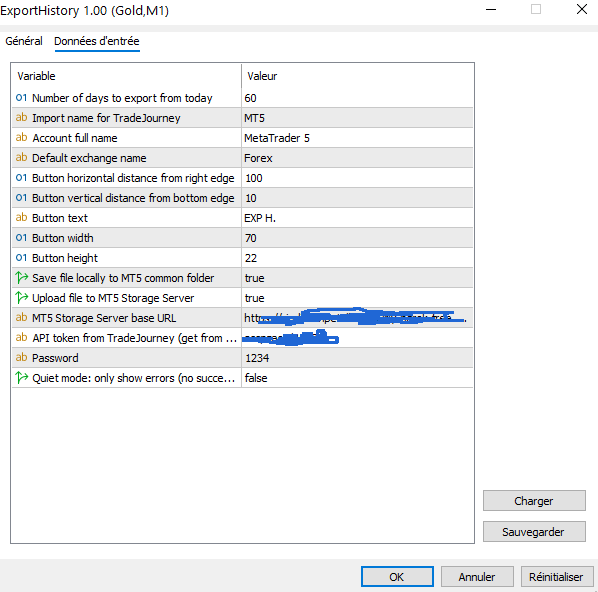
- Configure the EA with your "Api token" from TradeJourney (available in your user settings in TradeJourney)
- In the import profile, enable "Upload file to mt5 storage server"
- Press the "Exp. History" export button in MetaTrader 5
TradeJourney side:
- Once your profile is created, click the Use button on the MT5 profile
- Click on the list item that corresponds to the exported file, then select Import